
An entity is any person or business you keep a record for in XtremeCRM: customers, leads, vendors, employees and more. Every new record starts the same way, from the Entity button.
Two choices on the form decide what kind of record you get:
| Choice | What it means | Pick this when |
|---|---|---|
| Type: Person | You enter one or more people by first and last name. | A household or individual, such as most residential customers. |
| Type: Company | You enter a business name. | A business customer, a vendor or a supplier. |
| Tags | Tags decide the role, such as Customer, Lead, Vendor or Employee. | Always. A record without a Customer tag can't have orders or payments. |
Customer, Lead, Vendor and Employee aren't on the Type list. You set them with Tags.
Have the name, address, phone and email ready before you open the form. Closing the form without saving discards what you typed.
1. Open the Add Entity form
On the right side of the XtremeCRM window, click the Entity button (a person icon with a plus sign). The Add Entity form opens over the screen.
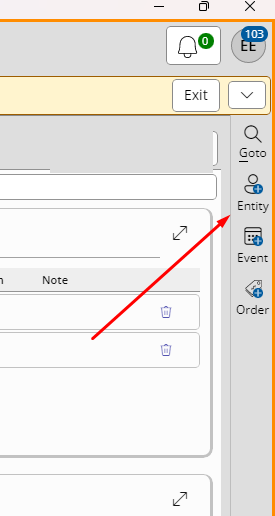
If you don't see the button bar, your window may be too narrow. Click the small arrow tab on the right edge of the window to show it.
2. Choose the company (only if you see it)
If your business has more than one company, a Company dropdown appears at the top of the form. Pick the company this record belongs to. Don't leave it blank.
If you only have one company, this box doesn't appear and XtremeCRM fills it in for you.

3. Choose the type
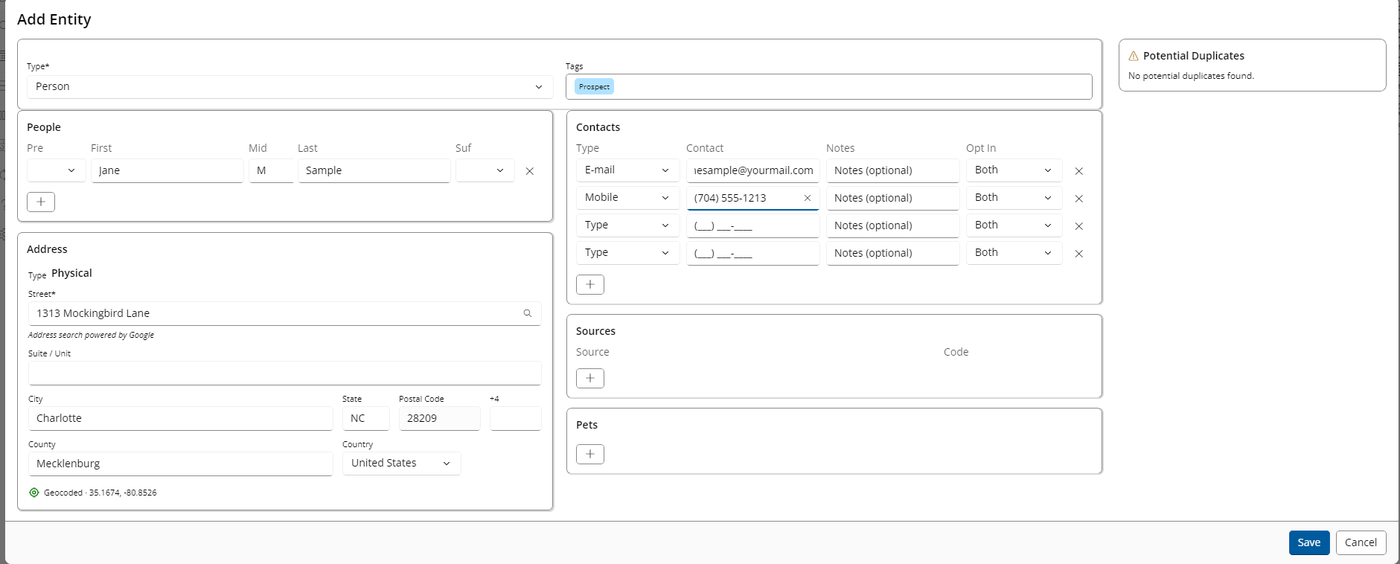
In the Type dropdown, choose Person or Company. Type is required.
Your office may have a default type set. If so, it's already filled in, and you can change it if you need to.
4. Add tags
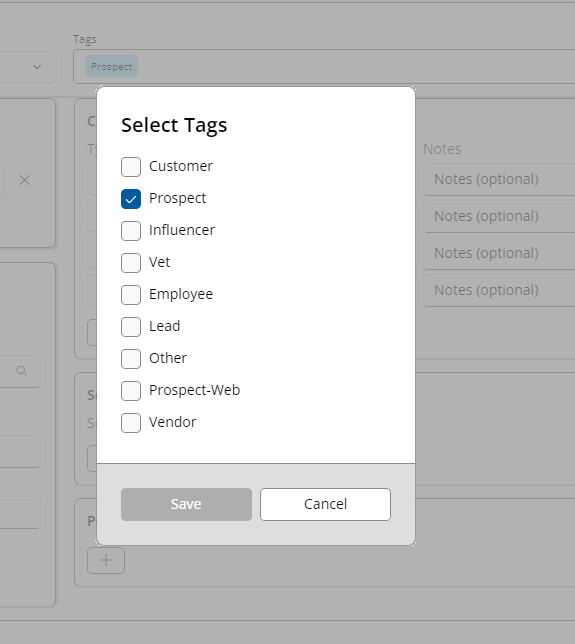
- Click in the Tags box.
- In the Select Tags window, check every tag that applies, such as Customer or Lead.
- Click Save.
The tags you see depend on the type you chose in step 3, so choose the type first. Some tags, such as Prospect, may already be filled in based on your office's settings. Uncheck any that don't apply.
5. Enter the name
- Company: type the business name in Name.
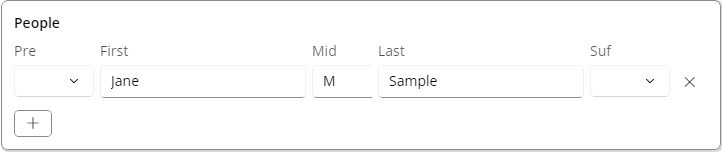
- Person: in the People section, fill in First and Last. Prefix (Pre), middle initial (Mid) and suffix (Suf) are optional. To add a second person, such as a spouse, click +.
6. Enter the address
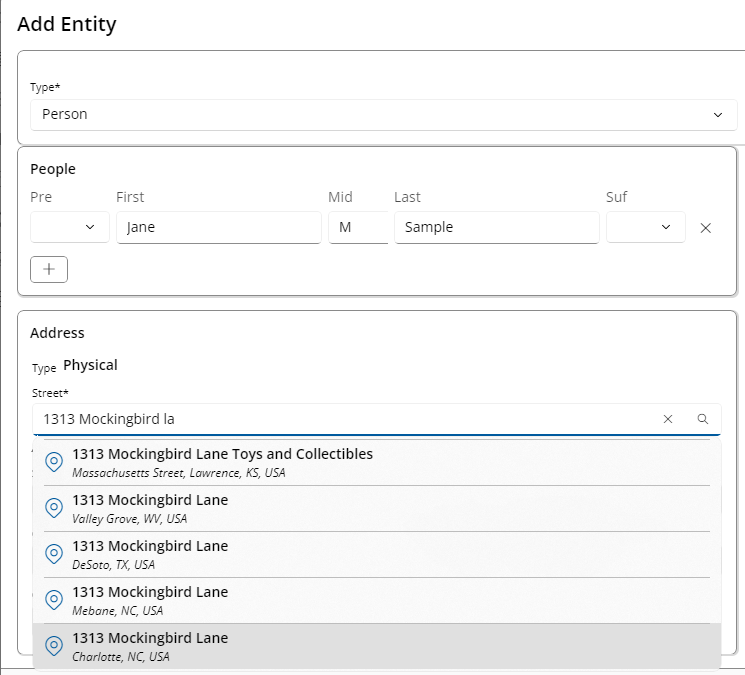
- In Street, start typing the house number and street.
- After a few letters, a list of suggested addresses appears. Click the right one.
- XtremeCRM fills in City, State, Postal Code, County and Country for you, and shows a green Geocoded line. That means the address will show on the map.
- Add a Suite / Unit if there is one.
You can also paste a full address into Street to see suggestions. If no suggestion matches, type the rest of the fields by hand.
7. Enter phone numbers and email
The Contacts section starts with a few blank rows with no type chosen. Pick a Type for each row you use, such as Mobile or E-mail.
- Type the number or address in Contact. Phone numbers format themselves as you type.
- Add a note if it helps, such as "call after 5".
- Check the Opt In choice. The default is Both, meaning the person can get reminders and marketing. Change it to Transactional for reminders only, or Opted out if they asked not to be contacted.
- Click + for more rows. Blank rows are ignored when you save.
8. Add the lead source (optional)
In Sources, click + and choose how the customer found you, such as a show or a referral. Add a promotion Code if there is one.
If your business uses pet containment, a Pets section also appears. Pets are saved only when the record has a Customer tag.
9. Check for duplicates
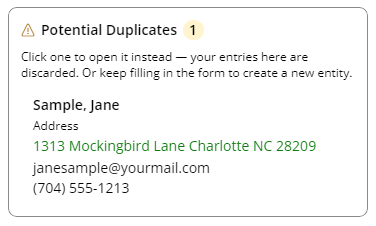
As you type, the Potential Duplicates panel on the right checks for existing records with the same name, phone, email or address.
- If it says No potential duplicates found., keep going.
- If it lists a match, look at it closely. If it's the same person or business, click the match to open that record instead. Whatever you typed on the form is discarded, so you don't create a second copy.
10. Save
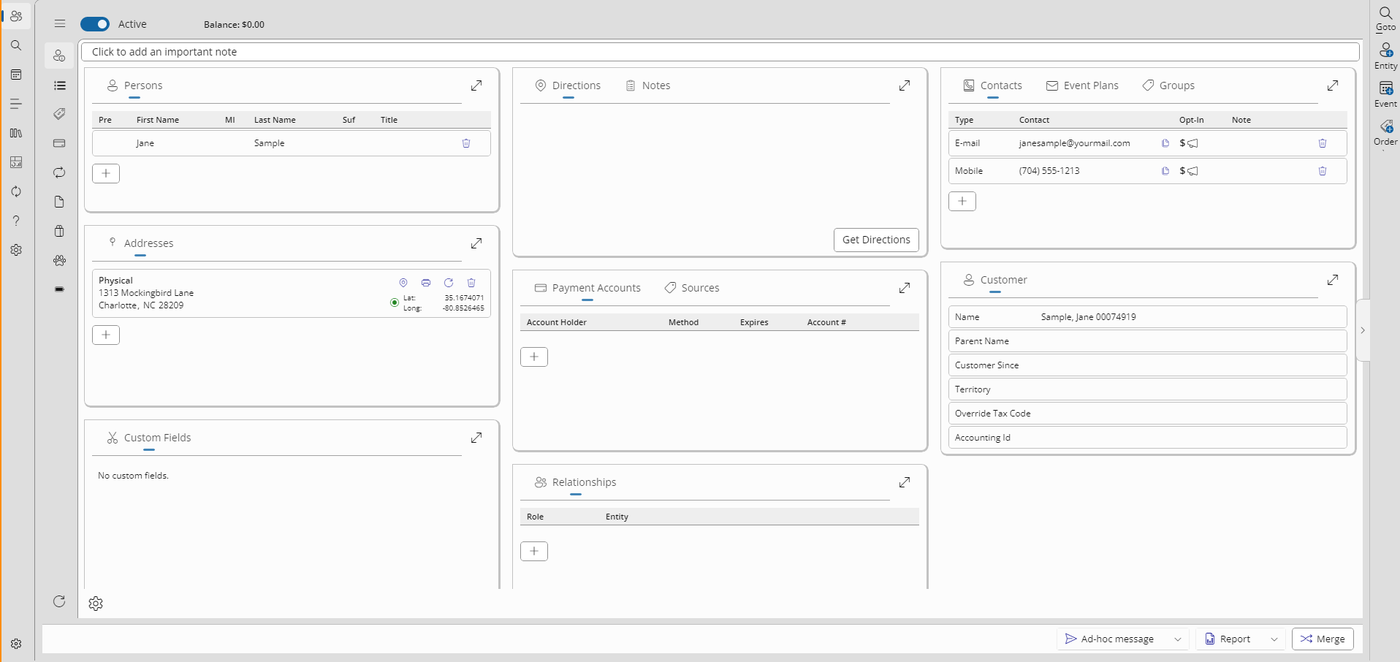
Click Save at the bottom right. The form closes and the new record opens.
Clicking Cancel closes the form right away and throws away everything you typed. There's no "are you sure" message.
Finish the record
Some details aren't on the Add Entity form. Add them on the new record once it opens.
| To add | Where |
|---|---|
| An important note that pops up for anyone who opens the record, such as a gate code or "large dog" | Click Click to add an important note at the top of the record. |
| General notes | The Notes card |
| Customer details: customer since date, territory, tax code, accounting ID | The Customer card |
| A second address, such as billing | The Addresses card |
| More phone numbers or emails | The Contacts card |
| Custom fields your office uses | The Custom Fields card |
If you typed the address by hand instead of picking a suggestion, XtremeCRM may ask Check this address for a cleaner version? Click Check. If it finds a better match, click Use suggestion, or click Keep original if your version is right.
If something goes wrong
If something goes wrong when you save, a red message appears under the form and the form stays open, so nothing you typed is lost.
| What you see | What to do |
|---|---|
| No Entity button on the right | Widen the window, or click the small arrow tab on the right edge to show the button bar. |
| Entity Type is required. | Choose Person or Company in Type. |
| Name is required for a Company. | Type the business name in Name. |
| At least one person with a first or last name is required. | Fill in First or Last in the People section. |
| Failed to create entity: followed by more text | Click Save again. If it still fails, take a screenshot and contact support from the Help menu. |
| The tag you need isn't in the list | Check that Type is right. Tags are filtered by type. |
| No address suggestions appear | Type the house number, a space and at least 3 letters of the street, then wait a moment. |
| You created a duplicate by mistake | Contact support from the Help menu. XtremeCRM doesn't merge records on its own. |